> ## Content Index
> Fetch the complete content index at: https://blog.jsinh.in/llms.txt
> Use this file to discover other available public pages before exploring further.
# Glimpse for debugging and profiling ASP.NET MVC
- URL: https://blog.jsinh.in/glimpse-for-debugging-and-profiling-asp-net-mvc/
- Published: 2015-01-06T19:20:00.000Z
- Updated: 2026-07-07T15:08:32.000Z
- Author: Jsinh
- Tags: #Import 2026-10-04 19:16
If you are not using Glimpse to debugging and profiling ASP.NET web application then you are missing out on very useful stuff I must say.

This NuGet package brings many handy information about your ASP.NET MVC application, which in turn can be useful and quick help to dig state and performance issues in your application.
Advantage of adapting Glimpse is that, it can be used in production environment where it can be enabled or visible based on your custom configuration / conditon. Thus gives you power to analyse your production state without compromising or hindering your environment rules and constraints.
You can install [Glimpse from NuGet into your ASP.NET MVC application](https://www.nuget.org/packages/Glimpse.Mvc5/?ref=blog.jsinh.in) with `Install-Package Glimpse.Mvc5` (because I am using MVC5 for this example).
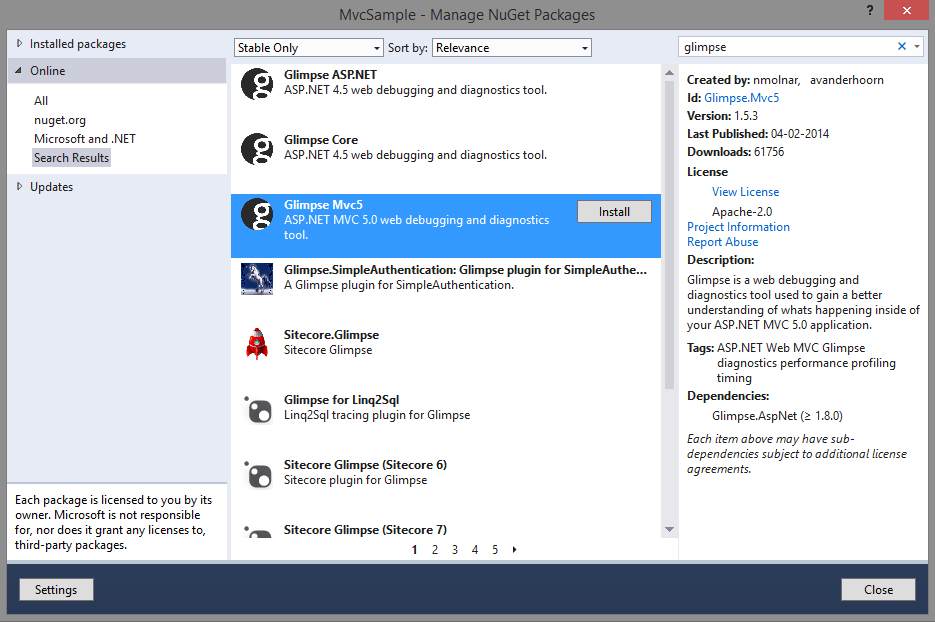
This installs three packages:
- Glimpse.Mvc5 (Current release is 1.5.3)
- [Glimpse.AspNet](https://www.nuget.org/packages/Glimpse.AspNet/?ref=blog.jsinh.in)
- [Glimpse (Core)](https://www.nuget.org/packages/Glimpse/?ref=blog.jsinh.in)
If you are using other version of MVC you can install Glimpse targeting your MVC version.
- [Glimpse for MVC5](https://www.nuget.org/packages/Glimpse.Mvc5/?ref=blog.jsinh.in)
- [Glimpse for MVC4](https://www.nuget.org/packages/Glimpse.Mvc4/?ref=blog.jsinh.in)
- [Glimpse for MVC3](https://www.nuget.org/packages/Glimpse.Mvc3/?ref=blog.jsinh.in)
- [Glimpse for MVC2](https://www.nuget.org/packages/Glimpse.Mvc2/?ref=blog.jsinh.in)
Official site for [Glimpse project](http://getglimpse.com/?ref=blog.jsinh.in) \- Free, open source and built by the community with love.
When you install Glimpse into your MVC project, it adds minimal configuration required to your `Web.Config` file.
Definition for custom configuration node `glimpse`:
```
```
Define HTTP module and HTTP handler in `system.web` node:
```
```
Register HTTP module and HTTP handler in `system.webserver` node:
```
```
Add `glimpse` node at the end which can be used to configure Glimpse behavior as per your needs:
```
```
After adding Glimpse to your project when you run your application. By default Glimpse plugin does not show up. This is disabled by default.
You can enable Glimpse by going to following URL: `http://[your-url]/Glimpse.axd/` and click on "Turn Glimpse On".
Now when you navigate or open any URL of your web application you will see a blue bar at bottom right corner of your browser similar to this:
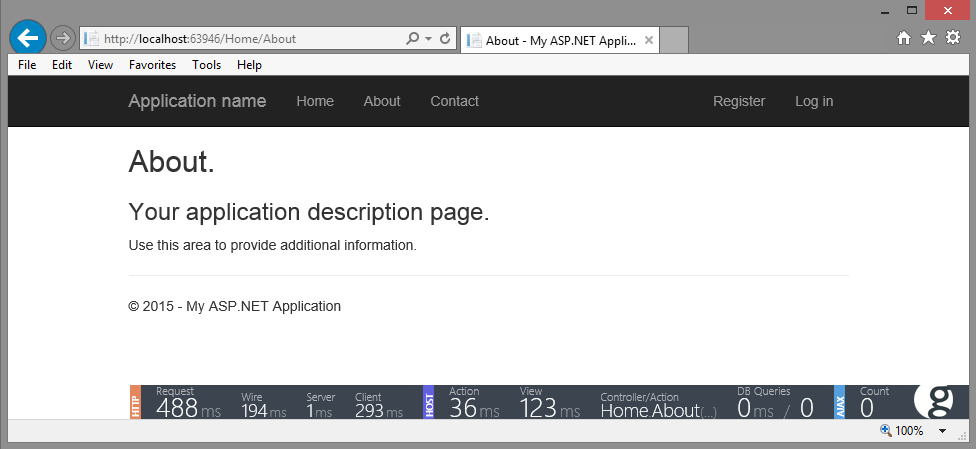
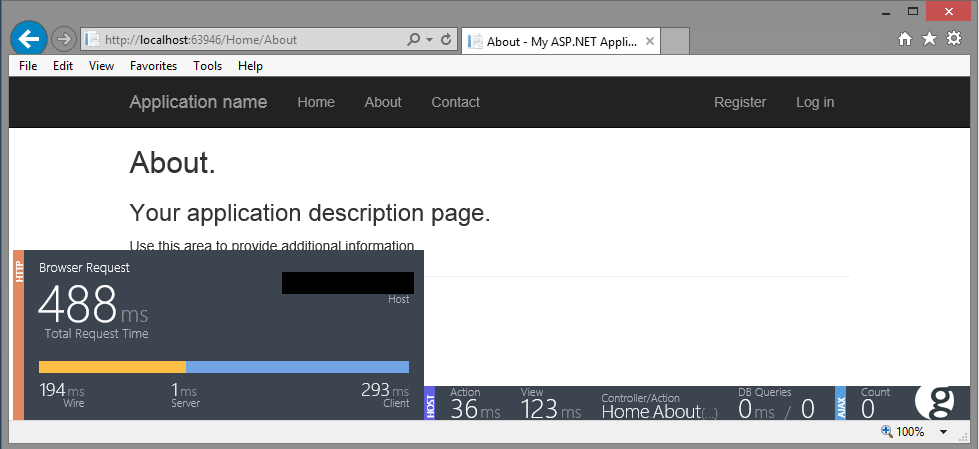
This Glimpse bar gives you summary of the profiling data captured for the current request you made. When you hover over the HTTP part of the summary bar then it would expand that area to show further more details.
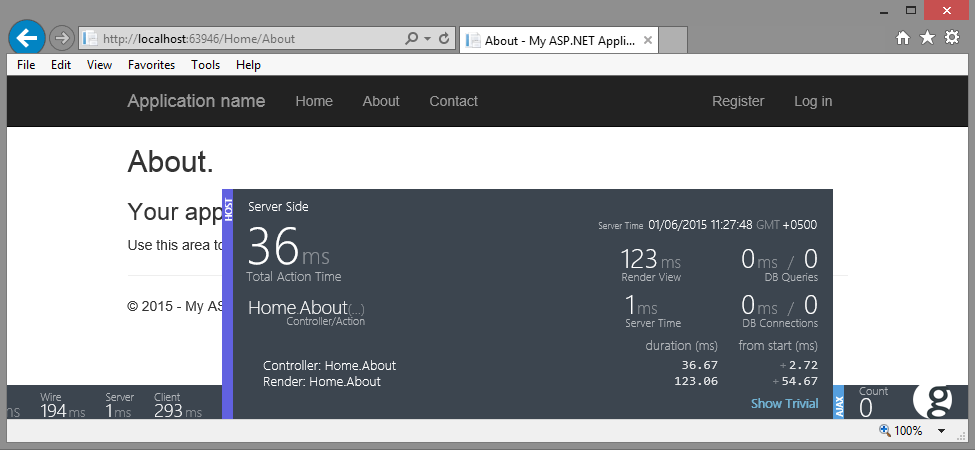
If you hover over the HOST part of the summary bar then it display more information for that section
When you click on the **G** icon at the bottom - right corner (which looks very similar to icon of Google for some reason) then it will open up view with tabs that gives your complete debugging and profiling details. This view looks very similar to the browser developer tool (F12) but showing information for different aspects of things happening on the server side.
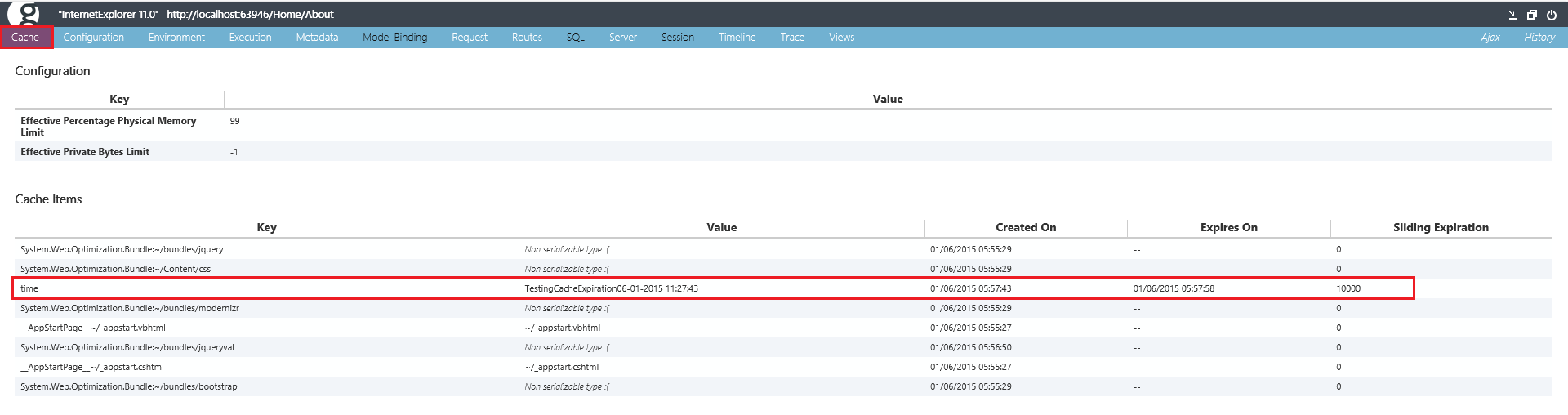
Two tabs I feel are very informative and useful in terms of performance tuning are:
Glimpse Execution Tab:

Glimpse Timeline Tab:
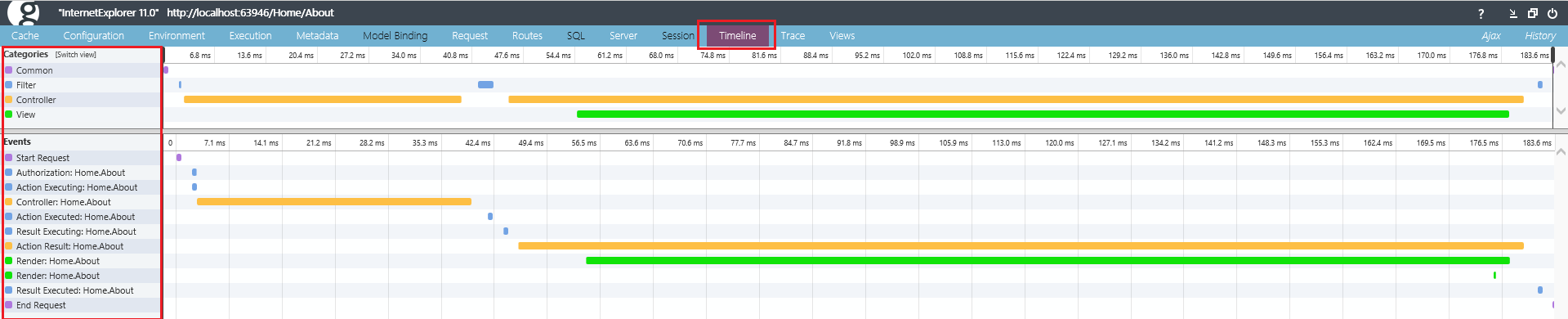
Each tabs are default extensions that came with the Glimpse MVC 5 NuGet package. But are not restricted to these tabs only. Glimpse core is very extensible in the way you can use. There are plenty of extensions available developed by Glimpse team and community to debug and profile different aspects of any web application.
**For example:** Glimpse Extension for [Entity Framework](https://www.nuget.org/packages/Glimpse.EF6/?ref=blog.jsinh.in), [SignalR](https://www.nuget.org/packages/Glimpse.SignalR/?ref=blog.jsinh.in), [AutoFac](https://www.nuget.org/packages/Glimpse.Autofac/?ref=blog.jsinh.in) to name a few.
Full list of Glimpse Extension can be [found here](http://getglimpse.com/Extensions/?ref=blog.jsinh.in). Also you can develop your [own Glimpse extension (Custom Tab)](http://getglimpse.com/Docs/Custom-Tabs?ref=blog.jsinh.in) and share with the community.
The Glimpse configuration can be controlled in `glimpse` node - Web.Config or via Code - [learn how to](http://getglimpse.com/Docs/Configuration?ref=blog.jsinh.in).
Say hi and connect with founders of Glimpse - [Anthony van](http://blog.anthonyvanderhoorn.com/?ref=blog.jsinh.in) [der Hoorn](https://github.com/avanderhoorn?ref=blog.jsinh.in) ([@anthony\_vdh](https://twitter.com/anthony%5Fvdh?ref=blog.jsinh.in)) and [Nik](https://nikcodes.com/?ref=blog.jsinh.in) [Molnar](https://github.com/nikmd23?ref=blog.jsinh.in) ([@nikmd23](https://twitter.com/nikmd23?ref=blog.jsinh.in)), thank you guys for Glimpse.
To conclude, I highly recommend to get started with Glimpse and start using it for creating beautiful and fast web application on ASP.NET stack.
Happy Coding!!